Omnipod® 5 FAQs:
Omnipod 5 App & Other
Mobile Apps
Omnipod 5 App Updates
What is new in the latest version of the Omnipod 5 app? How can I tell if my Pods are compatible with the new features?
There are two new features included in the latest software release (v4.0.2 for Android and Controller, v2.2.1 for iPhone).
Omnipod 5 now has algorithm enhancements featuring a new, lower 100 mg/dL Target Glucose option for more time in range (and no meaningful impact on time below range).1 The enhanced algorithm is also designed to reduce interruptions and help users remain in Automated Mode, including during prolonged hyperglycemia.
We’ve expanded sensor compatibility for more flexibility. Omnipod 5 is now integrated with the FreeStyle Libre 3 Plus sensor. Omnipod 5 is compatible with all major sensor brands including Dexcom G7 CGM Systems*, FreeStyle Libre 3 Plus and FreeStyle Libre 2 Plus sensors, making it the most connected tubeless automated insulin delivery system.
The Pod form factor itself did not change. Compatible Pods can be identified by a black dot with ‘R1’ on the upper right corner of the Tray Lid and on the box label.
1In a simulated analysis, the 100 mg/dL Target Glucose (TG) setting demonstrated superior Time in Range (70-180 mg/dL) and non-inferior Time Below Range (<70 mg/dL) compared with results at the 110-150 mg/dL TG settings in a real-world population of people with T1D using Omnipod 5. Differences in mean TIR for 100mg/dL vs 110mg/dL, vs 120 mg/dL, vs 130 mg/dL, vs 140 mg/dL, vs 150 mg/dL were 2.5%, 4.8%, 9.8%, 15.3%, and 20.8%, respectively. For each comparison, the lower bound of the one-sided 95% Confidence Interval (CI) was > 0, meeting the pre-specified superiority criterion. Differences in mean TBR for 100mg/dL vs 110mg/dL, vs 120 mg/dL, vs 130 mg/dL, vs 140 mg/dL, vs 150 mg/dL were 0.4%, 0.7%, 0.8%, 0.9%, and 0.9%, respectively. For each comparison, the upper bound of the one-sided 95% Confidence Interval (CI) was below the 2% non-inferiority margin. Analysis not controlled for ISF, ICR, % time in Automated Mode and number of bolus/day. Data on File. RF-012026-00057.
*Dexcom is in the process of discontinuing Dexcom G6 to focus on delivering the next generation of CGM. Omnipod 5 will continue to support integration with Dexcom G6 for as long as this sensor remains available. For more information, please visit www.dexcom.com or contact Dexcom support.
I use a Dexcom CGM with my Omnipod 5 System, how can I tell if my Pods are compatible with the new algorithm features of the Omnipod 5 app?
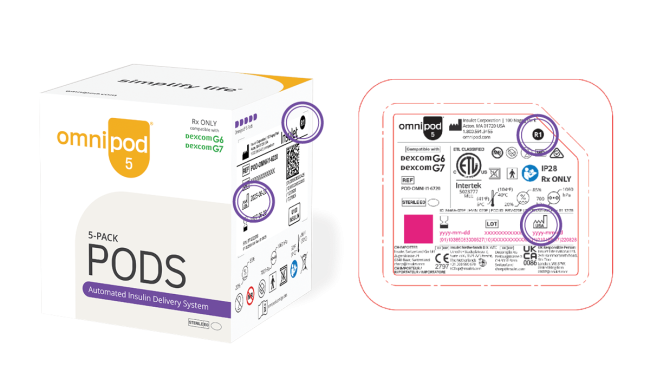
Omnipod 5 Pods that are compatible with Dexcom G7 CGM Systems and Dexcom G6 and manufactured after January 1, 2026 support the new 100 mg/dL Target Glucose option today.
Compatible Pods with the full algorithm enhancements suite are identified by a black dot with 'R1' on the Tray Lid and box label, and are already shipping to pharmacies. They will be included in one of your upcoming refills this summer.
No prescription change is needed—this is the fastest and most reliable way to receive the new compatible Pods.
I use a FreeStyle Libre 2 Plus sensor with my Omnipod 5 System, how can I tell if my Pods are compatible with the new features in v 4.0.2 of the Omnipod 5 app?
Compatible Pods with the algorithm enhancements also offer FreeStyle Libre 3 Plus sensor integration. They are identified by updated labeling that includes the FreeStyle Libre 3 Plus sensor logo and a black dot with 'R1' on the Tray Lid and box label.
Compatible Pods are already shipping to pharmacies and will be included in one of your upcoming refills this summer.
No prescription change is needed—this is the fastest and most reliable way to receive the new compatible Pods.
The Pods compatible with FreeStyle Libre 2 Plus sensor will continue to work with the software but are unable to access FreeStyle Libre 3 Plus sensor integration and algorithm enhancements.
What do I need to do to get compatible Pods?
Compatible Pods are already shipping to pharmacies and will be included in one of your refills starting this summer.
Why am I getting an update for the Omnipod 5 app?
Insulet is committed to the continuous improvement of your user experience and the innovation of our products. From time to time, we will send out updates to address feedback received from our users, update certain product features, and integrate new technologies. When you receive an update, you will be prompted in the Omnipod 5 app prior to installing. Simply follow the steps to complete this process.
Will an Omnipod 5 app update require me to change my Pod or sensor?
The Omnipod 5 app update will not require you to change your Pod or sensor.
Is it necessary to pause insulin delivery to update the Omnipod 5 app, and can a bolus be delivered while the app update is being installed on the Controller or a compatible smartphone*?
You do not need to pause insulin delivery or adjust insulin delivery settings to install the update. The Omnipod 5 app on a Controller or compatible smartphone* will not update while a bolus is being delivered. Basal insulin will continue to deliver in the background. Normal use will resume upon completion of the update.
What happens if I try to install the app update when I am not on a Wi-Fi connection?
You will receive a notification to update the Omnipod 5 app on your dedicated Controller or compatible smartphone*, regardless of whether your device is connected to Wi-Fi or a cellular network. However, if your device is not connected to Wi-Fi when you select the option to update, you will be prompted to connect to a Wi-Fi network.
Where can I see what version of the Omnipod 5 app I have installed?
To check the version of your Omnipod 5 app, you can follow these steps:
- Open the Omnipod 5 app on your device.
- Click on the three lines on the upper left-hand side.
- Navigate to the ‘About’ section of the app.
- Scroll down and look for ‘App Version’, ‘Version’, or similar. This should display the current version of your Omnipod 5 app.
How do I install a new app update when it becomes available?
For full instructions on how to complete an update on your Controller or compatible smartphone, visit Omnipod 5 App Update Instructions.
Can I delay or opt out of a new update on my Controller or compatible smartphone?
We always recommend installing updates available to you as soon as you are able to ensure you have the latest software and features. When a new update is available a notification will present on the screen and you will have the option to install at that time or delay the update. If you are not ready to install the update you can select 'Not Now' and update at a time convenient to you. Please note each time you select 'Not Now' a notification will reappear after 72 hours until the update is successfully installed.
I was notified about the upcoming app update but I have not received a notification to update, how do I access it?
Completing the update on your Controller
If you are using a Controller it must have network connectivity. If your Controller is in airplane mode, you won’t receive the update notification or be able to install the update. However, once you turn off airplane mode, you should receive the update notification within 24 hours.
To manually update on the Controller:
- Navigate to the home screen.
- Tap the notification bell.
- Tap the update notification.
- Tap ‘Update Now’.
Simply follow the on-screen instructions to install the update.
Completing the update on your Android Smartphone
You can update the Omnipod 5 app at any time either manually or directly through the Google Play Store App, if you have a compatible smartphone*. Please note, if you initiate an update directly in the Google Play Store App, you must relaunch the app to continue receiving notifications.
To manually update in the Omnnipod 5 app:
- Navigate to the home screen
- Tap the notification bell
- Tap the update notification
- Tap ‘Update Now’
Completing the update on your iPhone
You can update the Omnipod 5 app at any time either manually or directly through the App Store, if you have a compatible smartphone*. If your Omnipod 5 app already shows the latest version without an update button, this means you have automatic updates enabled, and no further action is required.
To manually update in the Omnnipod 5 app:
- Navigate to the home screen
- Tap the notification bell
- Tap the update notification
- Tap ‘Update Now’ You will be redirected to the App store to complete the update.
How much battery life does my Controller or compatible smartphone* need to install the app update?
Your Controller or compatible smartphone* battery level must be above 15% to install the update.
What if my device is charging during the app update? Will that cause any problems?
Your Controller or compatible smartphone* can be charging during the update. Your device must reach the required battery level of greater than 15% while charging to begin the update installation.
Omnipod 5 App
Is the Omnipod 5 app secure?
The Omnipod 5 app has been designed to ensure safe and secure communication with the Pod. The app ensures that you must first login to start using the app. The app is verified through Insulet's cloud using the industry standard certificate. Every communication between the Pod and Omnipod 5 app is encrypted and goes through a series of verifications to ensure that only the trusted Omnipod 5 app can communicate with the Pod. As a result, all aspects of the communication between the app, Pod, and the cloud are protected from security threats.
Will insulin delivery control work in Airplane mode?
The Omnipod 5 System is safe to use at atmospheric pressures typically found in airplane cabins during flight. Always check your glucose frequently during flying. Though the Omnipod 5 System is safe to use at atmospheric pressures typically found in airplane cabins during flight, the atmosphere pressure in an airplane cabin can change during flight, which may affect the Pod's insulin delivery. The Omnipod 5 app sends and receives information from the Pod using Bluetooth® wireless technology. Before flying, check your airline's policy regarding the use of Personal Medical Electronic Devices that communicate using Bluetooth technology. If use of a Personal Medical Electronic Device using Bluetooth technology is allowed, set your Omnipod Controller to airplane mode so you can communicate with your Pod. Airplane Mode is a device setting that will turn off cellular and Wi-Fi network connectivity but keep Bluetooth active. If you are using your smartphone, make sure to check that Bluetooth is enabled after you turn ON Airplane mode. ALWAYS keep the Bluetooth setting ON. If you turn this setting OFF, you will not be able to use the Omnipod 5 app.
How do I set my Omnipod® 5 app language to Spanish?
To set your Omnipod 5 app language to Spanish on your Controller go to:
Menu > Settings > General > Language
I accidentally set my Omnipod® 5 app to Spanish. How do I change that back?
To change your Omnipod 5 app language to English on your Controller go to:
Menú > Ajustes > General > Idioma
What is the Custom Foods feature?
The Custom Foods feature allows users to input and save carb amounts for typical meal sizes, favorite foods and snacks such as a smoothie, salad or coffee. In addition, you can add typical meal sizes such as small, medium and large or breakfast, lunch and dinner. You can select from this list when bolusing for meals from your device using the SmartBolus Calculator for simplified mealtime math.
Does the Custom Foods feature include any preset meals or a food library?
The Custom Foods feature allows users to input and save carb amounts for typical meal sizes, favorite foods and snacks. There are no preset meal sizes or list of foods to select from and this feature is custom to you.
What types of foods can you add to the Custom Foods feature?
You can add carbohydrate information for any food, meal or snack eaten frequently such as a smoothie, salad or coffee. In addition, you can add typical sized meals such as small, medium and large or breakfast, lunch and dinner. You can add up to 50 custom foods. You can also edit, remove or change the order of foods added at any point in time.
Other Mobile Apps
Why can’t I use the PodderCentral® mobile app anymore?
As we shift our efforts to improving the PodderCentral website, the PodderCentral mobile app will no longer be available for use or download on the Google Play Store and App Store. There will be no changes to any information that is currently located on the PodderCentral platform, and users will be able to continue to make updates, link their Omnipod device to Glooko®, and access eLearning through their web browser at www.PodderCentral.com.
Omnipod 5 App
Is the Omnipod 5 App secure?
The Omnipod 5 App has been designed to ensure safe and secure communication with the Pod. The app ensures that you must first login to start using the app. The app is verified through Insulet's cloud using the industry standard certificate. Every communication between the Pod and Omnipod 5 App is encrypted and goes through a series of verifications to ensure that only the trusted Omnipod 5 App can communicate with the Pod. As a result, all aspects of the communication between the app, Pod, and the cloud are protected from security threats.
Will insulin delivery control work in Airplane mode?
The Omnipod 5 System is safe to use at atmospheric pressures typically found in airplane cabins during flight. Always check your glucose frequently during flying. Though the Omnipod 5 System is safe to use at atmospheric pressures typically found in airplane cabins during flight, the atmosphere pressure in an airplane cabin can change during flight, which may affect the Pod's insulin delivery. The Omnipod 5 App sends and receives information from the Pod using Bluetooth® wireless technology. Before flying, check your airline's policy regarding the use of Personal Medical Electronic Devices that communicate using Bluetooth technology. If use of a Personal Medical Electronic Device using Bluetooth technology is allowed, set your Omnipod Controller to airplane mode so you can communicate with your Pod. Airplane Mode is a device setting that will turn off cellular and Wi-Fi network connectivity but keep Bluetooth active. If you are using your smartphone, make sure to check that Bluetooth is enabled after you turn ON Airplane mode. ALWAYS keep the Bluetooth setting ON. If you turn this setting OFF, you will not be able to use the Omnipod 5 App.
How do I set my Omnipod® 5 App language to Spanish?
To set your Omnipod 5 App language to Spanish on your Controller go to:
Menu > Settings > General > Language
I accidentally set my Omnipod® 5 App to Spanish. How do I change that back?
To change your Omnipod 5 App language to English on your Controller go to:
Menú > Ajustes > General > Idioma
What is the Custom Foods feature?
The Custom Foods feature allows users to input and save carb amounts for typical meal sizes, favorite foods and snacks such as a smoothie, salad or coffee. In addition, you can add typical meal sizes such as small, medium and large or breakfast, lunch and dinner. You can select from this list when bolusing for meals from your device using the SmartBolus Calculator for simplified mealtime math.
Does the Custom Foods feature include any preset meals or a food library?
The Custom Foods feature allows users to input and save carb amounts for typical meal sizes, favorite foods and snacks. There are no preset meal sizes or list of foods to select from and this feature is custom to you.
What types of foods can you add to the Custom Foods feature?
You can add carbohydrate information for any food, meal or snack eaten frequently such as a smoothie, salad or coffee. In addition, you can add typical sized meals such as small, medium and large or breakfast, lunch and dinner. You can add up to 50 custom foods. You can also edit, remove or change the order of foods added at any point in time.
Omnipod 5 App Updates
Why am I getting an update for the Omnipod 5 App?
Insulet is committed to the continuous improvement of your user experience and the innovation of our products. From time to time, we will send out updates to address feedback received from our users, update certain product features, and integrate new technologies. When you receive an update, you will be prompted in the Omnipod 5 App prior to installing. Simply follow the steps to complete this process.
Will an Omnipod 5 App update change the algorithm or insulin delivery settings?
The Omnipod 5 App update will not change the algorithm or impact insulin delivery settings.
Will an Omnipod 5 App update require me to change my Pod or sensor?
The Omnipod 5 App update will not require you to change your Pod or sensor.
Is it necessary to pause insulin delivery to update the Omnipod 5 App, and can a bolus be delivered while the App update is being installed on the Controller or a compatible smartphone*?
You do not need to pause insulin delivery or adjust insulin delivery settings to install the update. The Omnipod 5 App on a Controller or compatible smartphone* will not update while a bolus is being delivered. Basal insulin will continue to deliver in the background. Normal use will resume upon completion of the update.
What happens if I try to install the App update when I am not on a Wi-Fi connection?
You will receive a notification to update the Omnipod 5 App on your dedicated Controller or compatible smartphone*, regardless of whether your device is connected to Wi-Fi or a cellular network. However, if your device is not connected to Wi-Fi when you select the option to update, you will be prompted to connect to a Wi-Fi network.
Where can I see what version of the Omnipod 5 App I have installed?
To check the version of your Omnipod 5 App, you can follow these steps:
- Open the Omnipod 5 App on your device.
- Click on the three lines on the upper left-hand side.
- Navigate to the ‘About’ section of the app.
- Scroll down and look for ‘App Version’, ‘Version’, or similar. This should display the current version of your Omnipod 5 App.
How do I install a new App update when it becomes available?
For full instructions on how to complete an update on your Android Smartphone or Controller, visit Omnipod 5 App Update Instructions for Compatible Android Smartphones and Controller.
Can I delay or opt out of a new update on my Controller or Android smartphone?
We always recommend installing updates available to you as soon as you are able to ensure you have the latest software and features. When a new update is available a notification will present on the screen and you will have the option to install at that time or delay the update. If you are not ready to install the update you can select 'Not Now' and update at a time convenient to you. Please note each time you select 'Not Now' a notification will reappear after 72 hours until the update is successfully installed.
I was notified about the upcoming App update but I have not received a notification to update, how do I access it?
You can update the Omnipod 5 App at any time either manually or directly through the Google Play Store App, if you have a compatible smartphone*. Please note, if you initiate an update directly in the Google Play Store App, you must relaunch the app to continue receiving notifications.
If you are using a Controller it must have network connectivity. If your Controller is in airplane mode, you won’t receive the update notification or be able to install the update. However, once you turn off airplane mode, you should receive the update notification within 24 hours.
To manually update:
- Navigate to the home screen.
- Tap the notification bell.
- Tap the update notification.
- Tap ‘Update Now’.
Simply follow the on-screen instructions to install the update.
How much battery life does my Controller or compatible smartphone* need to install the App update?
Your Controller or compatible smartphone* battery level must be above 15% to install the update.
What if my device is charging during the App update? Will that cause any problems?
Your Controller or compatible smartphone* can be charging during the update. Your device must reach the required battery level of greater than 15% while charging to begin the update installation.
Other Mobile Apps
Why can’t I use the PodderCentral® mobile app anymore?
As we shift our efforts to improving the PodderCentral website, the PodderCentral mobile app will no longer be available for use or download on the Google Play Store and App Store. There will be no changes to any information that is currently located on the PodderCentral platform, and users will be able to continue to make updates, link their Omnipod device to Glooko®, and access eLearning through their web browser at www.PodderCentral.com.