Omnipod 5 App Update Instructions
Before Completing the Update
It is important to ensure you have adequate battery levels and strong Wi-Fi connection before starting the update process. We recommend fully charging your device the day before the update.
- Your compatible Android smartphone or Controller battery level must be above 15%.
- To be able to download and install the update, you must be connected to a strong Wi-Fi connection. It could take longer to install the update with a weak Wi-Fi connection.
Select the device you're looking to update:
Completing the Update on your Controller
You will receive a notification on your Controller screen when the update is ready to install.
If you are ready to install the update you can select ‘Update Now’ and simply follow the on-screen instructions. If you are not ready to install the update you can select ‘Not Now’ and update at a time convenient to you.
If you choose ‘Not Now’ you can manually update at any time from the notification menu (bell icon). Otherwise, each time you select ‘Not Now’ a notification will reappear every 72 hours until the update is successfully installed.
To manually update:
- Navigate to the home screen
- Tap the notification bell
- Tap the update notification
- Tap ‘Update Now’
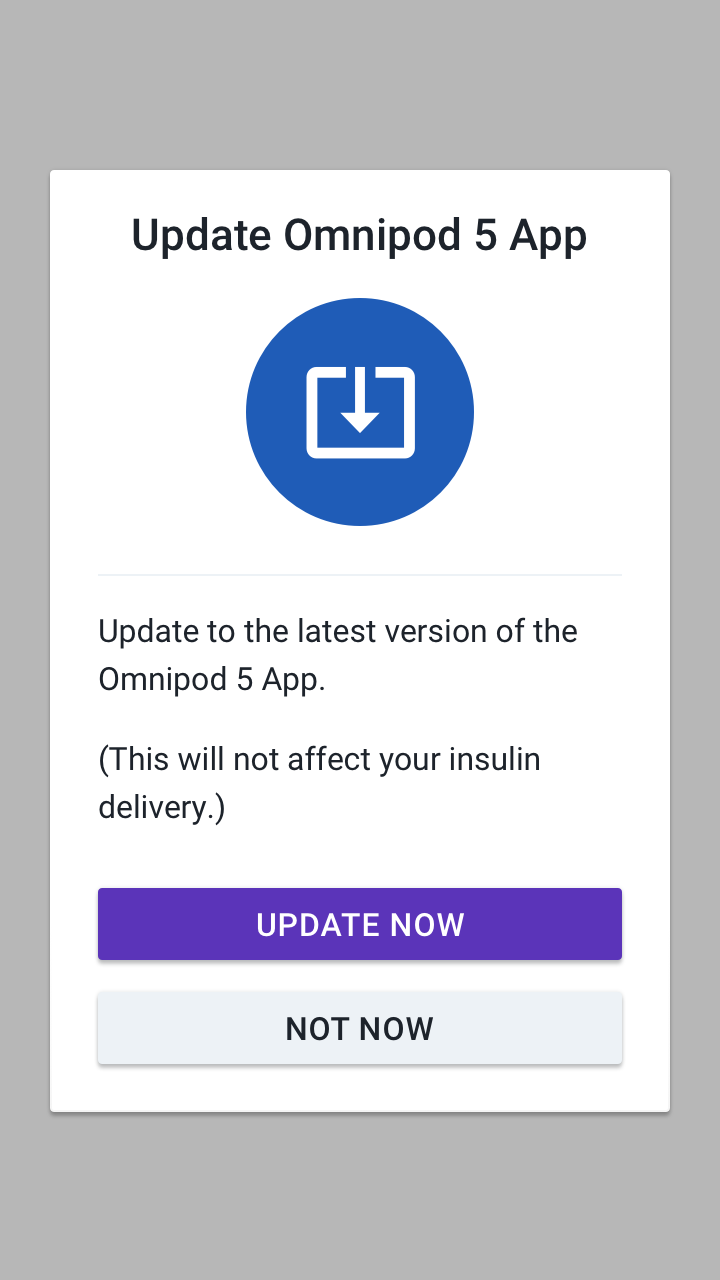
This software update requires at least 15% battery level. During the update, you will not be able to navigate within the Omnipod 5 app on your Controller, including the ability to bolus. Basal insulin will continue to be delivered in the background. This should take a few minutes depending on the strength of your Wi-Fi connection.
Normal use of the Omnipod 5 app on your Controller will resume once the update is complete. The update will not impact insulin delivery settings or your adaptivity from the algorithm.
Completing the Update on your compatible Android smartphone
Your compatible Android smartphone will receive an app update notification either from the Omnipod 5 app or the Google Play Store (if enabled) when the update is ready to install. You can also download the update directly on the Google Play Store app listing. You must relaunch the app to continue receiving notifications if you initiate an update directly in the Google Play Store.
If you are ready to install the update you can select ‘Update Now’ and simply follow the on-screen instructions. You can also navigate to your list of apps in Google Play. Tap Update next to the Omnipod 5 app.
If you are not ready to install the update you can select ‘Not Now’ and update directly on the Google Play Store or via the app at a time convenient to you.
If you choose ‘Not Now’ you can manually update at any time from the notification menu (bell icon) in the Omnipod 5 app. Otherwise, each time you select ‘Not Now’ a notification will reappear every 72 hours until the update is successfully installed.
To manually update in the Omnipod 5 app:
- Ensure your phone battery is charged to above 15%
- Navigate to your list of apps in Google Play
- Tap Update next to the Omnipod 5 app
During the update, you will not be able to navigate within the Omnipod 5 app on your compatible Android smartphone, including the ability to bolus. Basal insulin will continue to be delivered in the background. This should last a few minutes depending on the strength of your Wi-Fi connection.
Normal use of the Omnipod 5 app on your compatible Android smartphone will resume once the update is complete. The update will not impact insulin delivery settings or your adaptivity from the algorithm. Please note, if you uninstall and reinstall the app you will lose your insulin settings and adaptivity from the algorithm.
Completing the Update on your iPhone
Your compatible iPhone smartphone will receive an app update notification either from the Omnipod 5 app or the App Store (if enabled) when the update is ready to install. You can also download the update directly on the App Store listing. You must relaunch the app to continue receiving notifications if you initiate an update directly in the App Store.
If your Omnipod 5 app already shows the latest version without an update button, this means you have automatic updates enabled, and no further action is required.
If you are ready to install the update you can select ‘Update Now’ and simply follow the on-screen instructions. If you are not ready to install the update you can select ‘Not Now’ and update directly on the App Store or via the app at a time convenient to you.
To manually install the software update from the App Store
- Ensure your phone battery is charged to above 15%
- Navigate to your list of apps in the App Store
- Tap Update next to the Omnipod 5 app
If you choose ‘Not Now’ you can manually update at any time from the notification menu (bell icon) in the Omnipod 5 app. Otherwise, each time you select ‘Not Now’ a notification will reappear every 72 hours until the update is successfully installed.
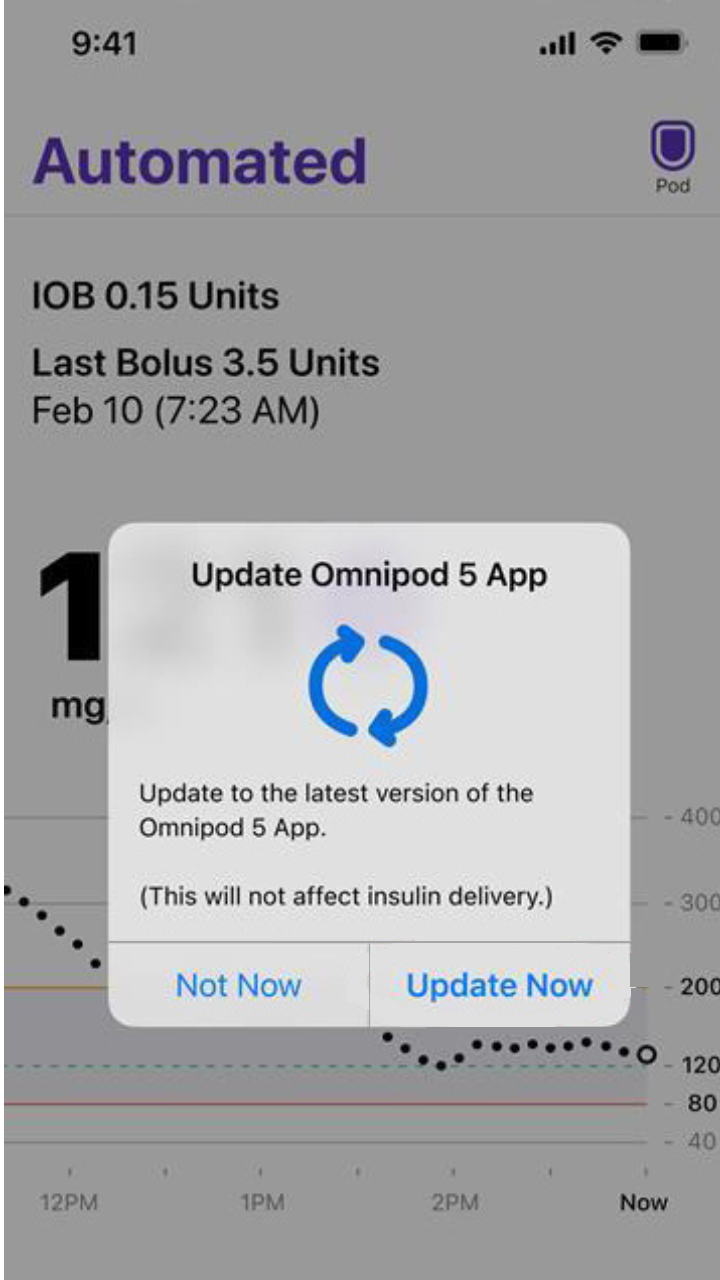
During the update, you will not be able to navigate within the Omnipod 5 app on your iPhone, including the ability to bolus, but basal insulin will continue to be delivered by your Pod. This should last a few minutes depending on the strength of your connection.
You’ll be able to resume use of the Omnipod 5 app on your iPhone once the update is complete. The update will not impact insulin delivery settings or your adaptivity from the algorithm.
Want to learn more?
Support at every step
For additional support access live chat on PodderCentral from 8am-8pm ET or contact the Omnipod Product Support team at 1-800-591-3455, available 24/7.