Omnipod 5 App Update Instructions for iPhone Users
How to Complete the Update
If your Omnipod 5 App already shows the latest version without an update button, this means you have automatic updates enabled, and no further action is required.
You’ll receive the below notification when the Omnipod 5 App is ready to update. Tap "Update”
If you’re not ready to update at that time you can select ‘Not Now’. The notification will appear every 72 hours until successfully installed. You can manually install the update from the App store at any time.
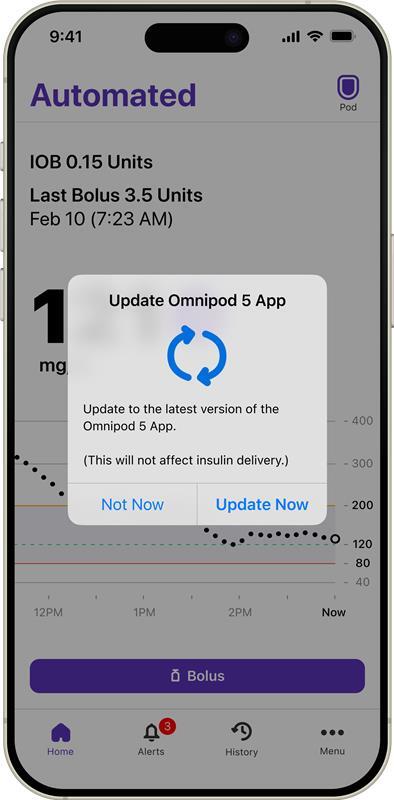
Tap Update Now
During the update
You will not be able to navigate within the Omnipod 5 App on your iPhone, including the ability to bolus, but basal insulin will continue to be delivered by your Pod. This should last a few minutes depending on the strength of your connection.
You’ll be able to resume use of the Omnipod 5 App on your iPhone once the update is complete. The update will not impact insulin delivery settings or your adaptivity from the algorithm.
Support at every step
For additional support, please contact our Customer Care team at 1-800-591-3455. We’re available 24/7.