Simplifying Mealtimes with Omnipod® 5’s Custom Foods Feature

A Smarter Way to Support Personalised Insulin Delivery

For many people living with diabetes, particularly children and young people, mealtimes present a daily challenge. Whether it's navigating carbohydrate counting or facing complex dosing calculations, these tasks can feel overwhelming.

That’s why the Omnipod 5 Custom Foods feature was developed—to make mealtime insulin dosing easier, faster, and more accessible. Integrated within the SmartBolus calculator, it helps people with type 1 diabetes and their caregivers by storing frequently eaten meals or snacks, and reducing the mental maths required at each meal.
How the Custom Foods Feature Works

The Custom Foods feature allows users to create a personalised list of meals, snacks, or foods. This list is accessible every time the SmartBolus Calculator is used.

Up to 50 custom entries can be stored, and each entry can represent a single item or an entire meal. For example:

  • “Tony’s pizza slice – 35g”
  • “My go-to afternoon snack – 26g”
  • “Greek yogurt with granola – 25g”

People can also reorder, delete, or edit entries easily, ensuring the list stays relevant to their lifestyle.

Download the Custom Foods Guide here.

Who Can Benefit from the Custom Foods Feature?

This feature supports a wide range of people, including those who:

  • Find carb counting difficult or burdensome
  • Receive meal support from carers, school nurses, or after-school staff
  • Frequently eat the same foods
  • Skip boluses due to calculation complexity
  • Want to reduce time spent thinking about diabetes

The feature is simplifying carb counting, designed to enhance independence and consistency.

Setting Up Custom Foods

  1. From the Controller Home screen, go to Menu > Custom Foods
  2. Tap ADD
  3. Enter a name and carb value, then tap SAVE
  4. Tap EDIT to manage the list, including reordering or deleting items

This quick and flexible setup means people with type 1 diabetes and their caregivers can tailor their personalised insulin delivery with just a few taps.

Using Custom Foods for Mealtime Boluses

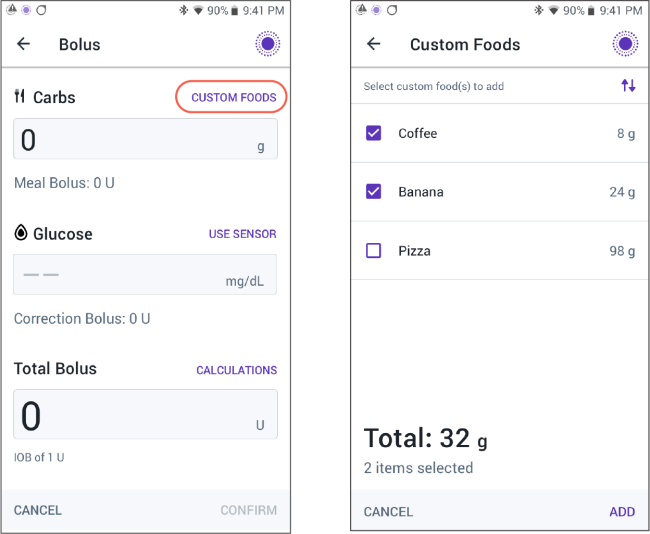
  • To use Custom Foods for a bolus, your patients should tap Custom Foods on the SmartBolus Calculator screen.
  • They can sort foods using the up-down arrow button and after that they can choose which food(s) they want to add to their calculation by tapping ADD.  
  • When they select multiple foods, the SmartBolus Calculator will add the grams of carbs of all the foods selected, reducing the math required.

Ultimately, this feature offers an easy way to bolus for meals—and can help to take the guess work out.
 

Image
Omnipod 5 Custom Foods with two screens shown side by side

Discover more ways Omnipod 5 can help your patients.

Clinician FAQs: Omnipod 5 Custom Foods

What is the Custom Foods feature on Omnipod 5?

How many custom food items can I store?

Do my patients need a smartphone to use this feature?

Can Custom Foods feature help children at school?

The Omnipod 5 Automated Insulin Delivery System is a single hormone insulin delivery system intended to deliver U-100 insulin subcutaneously for the management of type 1 diabetes in persons aged 2 and older requiring insulin. The Omnipod 5 System is intended for single patient use. The Omnipod 5 System is indicated for use with NovoLog®/NovoRapid®, Humalog® / Liprolog®, Admelog® / Insulin lispro Sanofi®, Trurapi® / Insulin aspart Sanofi®, and Kirsty® U-100 insulin. Refer to the Omnipod 5 Automated Insulin Delivery System User Guide and www.omnipod.com/safety for complete safety information including indications, contraindications, warnings, cautions, and instructions.

©2025 Insulet Corporation. Omnipod and the Omnipod logo are trademarks or registered trademarks of Insulet Corporation. All rights reserved. The Bluetooth® word mark and logos are registered trademarks owned by the Bluetooth SIG, Inc. and any use of such marks by Insulet Corporation is under license. All other trademarks are the property of their respective owners. The use of third-party trademarks does not constitute an endorsement or imply a relationship or other affiliation.